Level 3: The Input, Output, and Manifest
Author: Gijs ReijnBy now, you learned how to run commands using dsc. The output format returned to the console was YAML (Yet Another Markup Language), chosen by the team for its readability. Compared to previous versions, mainly PowerShell objects are returned to the console.
There is however a transformation happening when the engine handles the input and output. Take for example the following command to output the results to a file:
dsc resource list > list.json{"type":"Microsoft.DSC.Debug/Echo","kind":"resource","version":"1.0.0","capabilities":["get","set","test"],"path":"C:\\Users\\User\\AppData\\Local\\dsc\\echo.dsc.resource.json","description":null // # Limited }When output is redirected or piped in the shell, the data format is JSON. By default, the engine’s input and output is JSON, unless specified otherwise. That’s why in this next step of the template, you’ll learn:
- Understanding input formats in DSC
- Exploring output transformations
- The DSC Resource Manifest
Understanding Input Formats in DSC
Let’s take a step back and use the dsc resource command to explore the input and output in a safe manner without affecting your system. For that, you can leverage the Microsoft.DSC.Debug/Echo resource. This resource echos back what you’ve entered to the console application your working in. Let’s grab the example from earlier exercises.
DSC’s engine primary driver is JSON. Make note of that. Now, take a look at the exercise done earlier:
dsc resource list |
ConvertFrom-Json |
Where-Object -Property Kind -EQ 'resource' |
Select-Object -Property type, capabilities
This example demonstrates how you can use PowerShell to process the output returned by the CLI. PowerShell provides commands that make it easy to transform CLI output into PowerShell objects. For instance, you can see the ConvertFrom-Json command to convert JSON output, and then filter and select specific properties using Where-Object and Select-Object commands.
PowerShell isn’t limited to Windows anymore. It can run on MacOS and Linux, but you don’t have to use it. Instead, there are other tools for parsing, filtering, and modifying JSON by using for example jq.
Tip
Know that these tools are available on the market and you’re not limited in using PowerShell.
Time to examine the possibilities to input the required properties by executing the Microsoft.DSC.Debug/Echo resource. First, run the following command: dsc resource schema --resource Microsoft.DSC.Debug/Echo to indicate what input is required.
dsc resource schema --resource Microsoft.DSC.Debug/Echo |
ConvertFrom-Json |
Select-Object required

# Output
required
--------
{output}
There you have it. The output property is required before you can call the capability you want. Let’s build different examples how to call the get capability with the required input.
# YAML
dsc resource get --resource Microsoft.DSC.Debug/Echo --input 'output: Learn DSC'

# JSON
dsc resource get --resource Microsoft.DSC.Debug/Echo --input '{"output":"Learn DSC"}'

# PowerShell to JSON
dsc resource get --resource Microsoft.DSC.Debug/Echo --input (@{output = 'Learn DSC' } | ConvertTo-Json -Compress)

# PowerShell to YAML
dsc resource get --resource Microsoft.DSC.Debug/Echo --input (@{output = 'Learn DSC' } | ConvertTo-Yaml) # The ConvertTo-Yaml is not a built-in command

# Output
actualState:
  output: Learn DSC
Note
Which example is more convenient to write for you?
While all the provided examples function correctly, the tracing reveals that the data ultimately passed to the engine is in JSON format. This highlights the importance of understanding how input is processed internally.
DEBUG dsc_lib::dscresources::command_resource: 672: Invoking command 'dscecho' with args Some(["--input", "{\"output\":\"Learn DSC\"}"])The --input parameter is not the only one option to pass input towards the DSC resource you’re calling. The --file option allows you to specify a path to a file. You can guess it already a little, but this can be either .json, .yml, or .yaml. Take a look at the following examples:
# Create the YAML content
$content = 'output: Learn DSC'
$outFile = Join-Path $env:TEMP 'LearnDSC.yaml' # or .yml
Set-Content -Path $outFile -Value $content

# Call DSC resource
dsc resource get --resource Microsoft.DSC.Debug/Echo --file $outFile

# Create the JSON content
$content = '{"output":"Learn DSC"}'
$outFile = Join-Path $env:TEMP 'LearnDSC.json'
Set-Content -Path $outFile -Value $content

# Call DSC resource
dsc resource get --resource Microsoft.DSC.Debug/Echo --file $outFile
You have now learned about the multiple input formats DSC can use. You’ve seen the possible options by either using --input or --file if the DSC resource requires it. In the next section, you are going to learn about the output transformations.
Explore Output Transformations in DSC
In the output when dsc resource get --resource Microsoft.DSC.Debug/Echo was called, you see it returns YAML. Then again, sending the output towards something else reveals it to become JSON. But are there different output formats the CLI offers?
Let’s run the following command to reveal the help for the command:
dsc resource get --resource Microsoft.DSC.Debug/Echo --helpInvoke the get operation to a resource
Usage: dsc.exe resource get [OPTIONS] --resource <RESOURCE>
Options:
-a, --all Get all instances of the resource
-r, --resource <RESOURCE> The name of the resource to invoke
-i, --input <INPUT> The input document as JSON or YAML to pass to the configuration or resource
-f, --file <FILE> The path to a file used as input to the configuration or resource. Use '-' for the file to read from STDIN.
-o, --output-format <OUTPUT_FORMAT> The output format to use [possible values: json, pretty-json, yaml]
-h, --help Print helpDid you spot the option you can add? You probably guessed it right—it is the --output-format. The default output is YAML, but let’s see what happens with the different formats.
dsc resource get --resource Microsoft.DSC.Debug/Echo --input 'output: Learn DSC' --output-format json

# Output
{"actualState":{"output":"Learn DSC"}}

dsc resource get --resource Microsoft.DSC.Debug/Echo --input 'output: Learn DSC' --output-format pretty-json

# Output
{
    "actualState": {
        "output": "Learn DSC"
    }
}
By specifying the --output-format option, you can control how the CLI formats its output. This flexibility allows you to transform the output to your needs, especially if you want to capture the output for other reasons. Experiment with these options to find the format that works best for your workflow.
The DSC Resource Manifest
Without the DSC resource manifest, DSC will be a blank check. In level 1, you learned the steps what happens in the background when calling dsc resource list. These file suffixes are the resource manifest it attempted to look for. The resource manifest is the critical component, which provides metadata about a resource. To see it in a simplistic way, you can output the resource manifest of the Microsoft.Windows/Registry resource by running:
dsc resource list --description "Manage Windows Registry keys and values" |
ConvertFrom-Json |
ConvertTo-Json -Depth 10
This command outputs JSON to the console, highlighting the capabilities of the Microsoft.Windows/Registry resource, the manifest’s location, its version, and how DSC interacts with it effectively. You heard that correctly, how DSC can interact with it effectively. See, if you look closely to one of the property elements returned, you can see a truncated capability call example. In this example, it is the get capability:
"get": {
    "executable": "registry",
    "args": [
        "config",
        "get",
        {
            "jsonInputArg": "--input",
            "mandatory": true
        }
    ]
}
What you see here, is the following:
- The executable that will be called:
registry - The arguments that are passed along:
config get - The input argument that is mandatory:
--input
To make this example a little bit more clearer, you can literally run the registry executable using the following command:
registry config get --input (@{keyPath = 'HKCU'} | ConvertTo-Json)Tip
Wondering how you can get the input for the executable? Run registry schema or dsc resource schema --resource Microsoft.Windows/Registry to see the required and optional input.
DSC wraps itself around the executable and calls it by spawning it as a child process. The same example can be called using dsc as followed:
dsc resource get --resource Microsoft.Windows/Registry --input 'keyPath: HKCU'If you put on the tracing level to trace, you can spot what DSC does:
2025-03-21T08:22:24.093230Z  INFO dsc_lib::dscresources::command_resource: 40: Invoking get 'Microsoft.Windows/Registry' using 'registry'
2025-03-21T08:22:24.093307Z DEBUG dsc_lib::dscresources::command_resource: 672: Invoking command 'registry' with args Some(["config", "get", "--input", "{\"keyPath\":\"HKCU\"}"])
2025-03-21T08:22:24.098197Z DEBUG dsc_lib::dscresources::command_resource: 850: trace_message="PID 7140: registry: 51: Get input: {\"keyPath\":\"HKCU\"}"
Let’s look at some key elements in more depth.
Key Elements of the Manifest
You have seen now at least one element of the resource manifest which is important. The capabilities element defines the executables capabilities. In the Microsoft.Windows/Registry resource manifest, there are four capabilities specified:
getsetwhatIfdelete
Each DSC resource should specify the type property to define its purpose based on the fully qualified name syntax. This follows the following syntax: <owner>[.<group>][.<area>]/<name> allowing organizations to group resources into namespaces. Additionally, the kind property provides further context telling what the resource is about. The Microsoft.Windows/Registry is of kind resource, indication it is a command-based DSC resource.
Understanding the Role of Schema in DSC
DSC relies on schemas to validate and interpret the input and output for resources. These schemas can either be embedded within the resource manifest or provided by the executable itself. When you examined the resource manifest for Microsoft.Windows/Registry, you might have noticed a property resembling the following:
"schema": {
    "command": {
        "executable": "registry",
        "args": [
            "schema"
        ]
    }
}
This section of the manifest specifies how DSC retrieves the schema for the resource. In this case, the registry executable is invoked with the schema argument to provide the necessary details. The schema acts as a blueprint, ensuring that the input and output conform to the expected structure and format.
By leveraging the schema, DSC can match the provided input and output with the resource’s requirements. Confusing? Let’s do it step-by-step and examine what happens.
Open a PowerShell terminal session
Execute the following command:
dsc --trace-level trace resource get --resource Microsoft.Windows/Registry --input 'keyPath: HKCU'
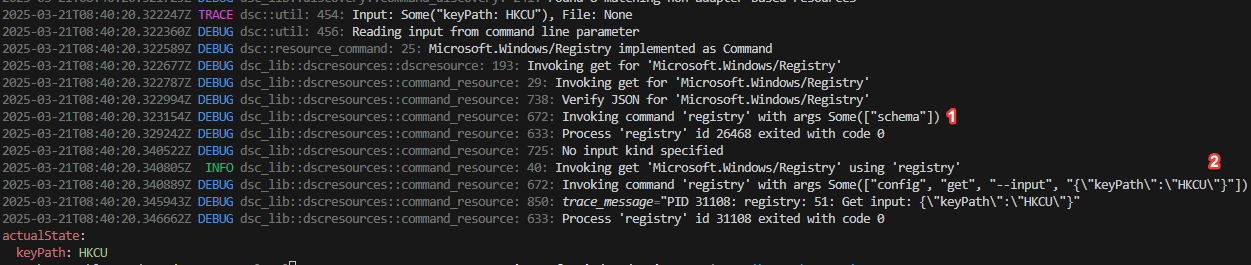
Figure 1: DSC trace registry executable call
In the first number, you can see dsc calling registry schema. dsc retrieves the information and compares if the property elements matches the schema. When it matches, it proceeds further and sends the jsonInputArgs towards registry config get. DSC appends the actualState to the output and the cycle completed.
Tip
Always refer to the resource manifest if your unfamiliar with resources. It serves as your guide to understanding the resource. The other option would be to call the resource directly e.g. registry.exe.
To explore the schema for a resource manifest directly, you can use the dsc schema --type resource-manifest command. This command outputs the schema definition for resource manifests, providing a detailed view of the structure and required properties.
For example, run the following command:
dsc schema --type resource-manifestThis will display the schema in JSON format, outlining the expected structure for resource manifests. By examining this schema, you can better understand how DSC validates and interprets resource definitions.
Tip
Use this command whenever you need to verify or understand the structure of a resource manifest.
With this knowledge, you now have a understanding how DSC uses schemas to validate input and output and how it calls the executable.
The topic on schemas can be hard to grasp. Don’t worry for now. Each time you run the command and refer back to the structure, it will start to make sense. In the next levels, you will also learn about other elements. Let’s test your knowledge.
Lab Questions
Output the following using
Microsoft.DSC.Debug/EchoresourceactualState: output: - Learn DSC - YounglingHow many input types can you use when calling
Microsoft.DSC.Debug/Echo?Create the following registry entry:
HKCU\1\2\3Remove the following registry entry:
HKCU\1\2\3How many
kindsare available in the resource manifest? Name them all.